
A technical guide for solution architects, sales engineers, professional services, and channel partners.
Part 1 - Panzura Express Solution Overview Part 2 - Panzura CloudFS Part 3 - Panzura Data Services with Threat Control Part 4 - Panzura Nexus Part 5 - Order of Deployment Part 6 - Appendix: All Reference Links
Panzura Product Marketing & Management Document Version 1.0 | Confidential — Panzura Partner Use
Table of Contents
Click any section title below to jump directly to that section.
PART 1 - Panzura Express Solution Overview
1.1 Executive Summary
1.1.1 The Business Challenge 1.1.2 The Solution 1.1.3 Why This, Why Now 1.1.4 Who This Solution Is For
1.2 Solution Overview
1.2.1 Panzura CloudFS - Single-Site NAS Foundation 1.2.2 Panzura Nexus - AI-Ready Data Access 1.2.3 Panzura Data Services & Threat Control - Visibility, Compliance, and Ransomware Defense
1.3 Solution Architecture
1.3.1 How the Components Work Together 1.3.2 Panzura CloudFS Architecture 1.3.3 Panzura Nexus Architecture 1.3.4 Panzura Data Services & Threat Control Architecture
1.4 Design Considerations
1.4.1 Capacity & Sizing 1.4.2 Cloud Storage Provider Options 1.4.3 Data Protection: Snapshots & Immutability 1.4.4 Performance: Smart Cache 1.4.5 Identity, Access Control & Compliance 1.4.6 High Availability & Disaster Recovery 1.4.7 Licensing Model
PART 2 - Panzura CloudFS
2.1 Executive Summary
2.2 Solution Overview
2.2.1 What Panzura Express Delivers 2.2.2 CloudFS NAS: The Single-Site Deployment Model 2.2.3 Architecture at a Glance
2.3 Prerequisites & Compatibility
2.3.1 Supported Platforms 2.3.2 Supported Browser (WebUI / Setup Wizard)
2.3.3 Cloud Storage Provider Compatibility 2.3.4 Express Sizing Configurations 2.3.5 Pre-Engagement Discovery Checklist 2.4 Network & Site Prerequisites 2.5 Deployment Steps 2.6 Post-Deployment Validation 2.7 Data Protection & Security 2.7.1 Snapshots 2.7.2 Smart Cache Configuration 2.7.3 Encryption & Compliance 2.7.4 Disaster Recovery 2.8 Operational Best Practices 2.9 Appendix: Reference Links
PART 3 - Panzura Data Services with Threat Control
3.1 Executive Summary
3.2 Solution Overview
3.2.1 What Panzura Data Services Delivers 3.2.2 Service Tiers 3.2.3 How Threat Control Works 3.3 Prerequisites & Compatibility 3.3.1 Platform & Licensing Requirements 3.3.2 Supported Browser 3.4 Account & Organization Setup 3.4.1 Setting Up Your Organization's Panzura Data Services Account 3.4.2 Registering CloudFS Nodes as Monitoring Targets 3.5 Core Data Services Capabilities 3.5.1 Search 3.5.2 Audit 3.5.3 Recovery 3.5.4 Analytics 3.6 Threat Control: Ransomware Detection 3.6.1 Active Alerts & Alert Types 3.6.2 Alert Lifecycle & Status 3.6.3 Configuration & Response Controls 3.7 Threat Control: User Behavior Analytics 3.7.1 Anomaly Detection Categories
3.7.2 User Profiles, Severity & Blocking 3.8 Incident Response Runbook 3.9 SIEM Integration & Notifications 3.9.1 Rapid7 InsightIDR 3.9.2 Splunk Cloud 3.10 Operational Best Practices 3.11 Appendix: Reference Links
PART 4 - Panzura Nexus
4.1 Executive Summary
4.2 Solution Overview
4.2.1 What Panzura Nexus Delivers 4.2.2 Key Capabilities
4.3 Architecture
4.3.1 Core Components 4.3.2 Data Governance Policies 4.3.3 Copilot Agent (Conversational Interface) 4.4 Prerequisites & Compatibility 4.4.1 Supported Platforms & Deployment Models 4.4.2 Hardware Requirements 4.4.3 Network Ports 4.4.4 CloudFS & Directory Services Requirements 4.4.5 Supported Browsers 4.5 Pre-Engagement Checklist 4.6 Enabling CloudFS for Nexus 4.6.1 CloudFS 8.6.x and 8.7.x 4.6.2 CloudFS 8.5.x (CLI) 4.7 Deployment Steps 4.8 Core Features & Governance 4.8.1 Governance: Policies and Rules 4.8.2 Dashboard, Reports, and Audit 4.8.3 Alerts and Jobs 4.8.4 Scan Support 4.9 What's New in Version 1.1.0 4.10 Operational Best Practices 4.11 Appendix: Reference Links
PART 5 - Order of Deployment
5.1 Step 1: Deploy Panzura CloudFS (Single-Site NAS Foundation) 5.2 Step 2: Deploy Panzura Data Services with Threat Control 5.3 Step 3: Deploy Panzura Nexus
PART 6 - Appendix: All Reference Links
PART 1
Panzura Express Solution Overview
This overview describes how to design, deploy, and operate Panzura's single-site NAS solution bundle - Panzura CloudFS for primary storage, Panzura Nexus for AI-ready data access through Microsoft Copilot, and Panzura Data Services with Threat Control for visibility, audit, and ransomware defense.
| Component | Role in the Solution | Business Value |
|---|---|---|
| Panzura CloudFS | Single-site, cloud-backed NAS that replaces traditional file servers |
Lower storage cost, ransomware- resilient, cloud-scale capacity |
| Panzura Nexus | Bridges CloudFS to Microsoft Copilot for secure, permission-aware AI search |
Selectively ingests file content, metadata, and change events from CloudFS into Copilot's AI ecosystem while maintaining existing ACLs |
| Panzura Data Services + Threat Control |
Visibility, search, audit/compliance, and ML-based ransomware detection |
Enterprise-class search, comprehensive audit trails, one-click file recovery, and AI-powered ransomware alerting |
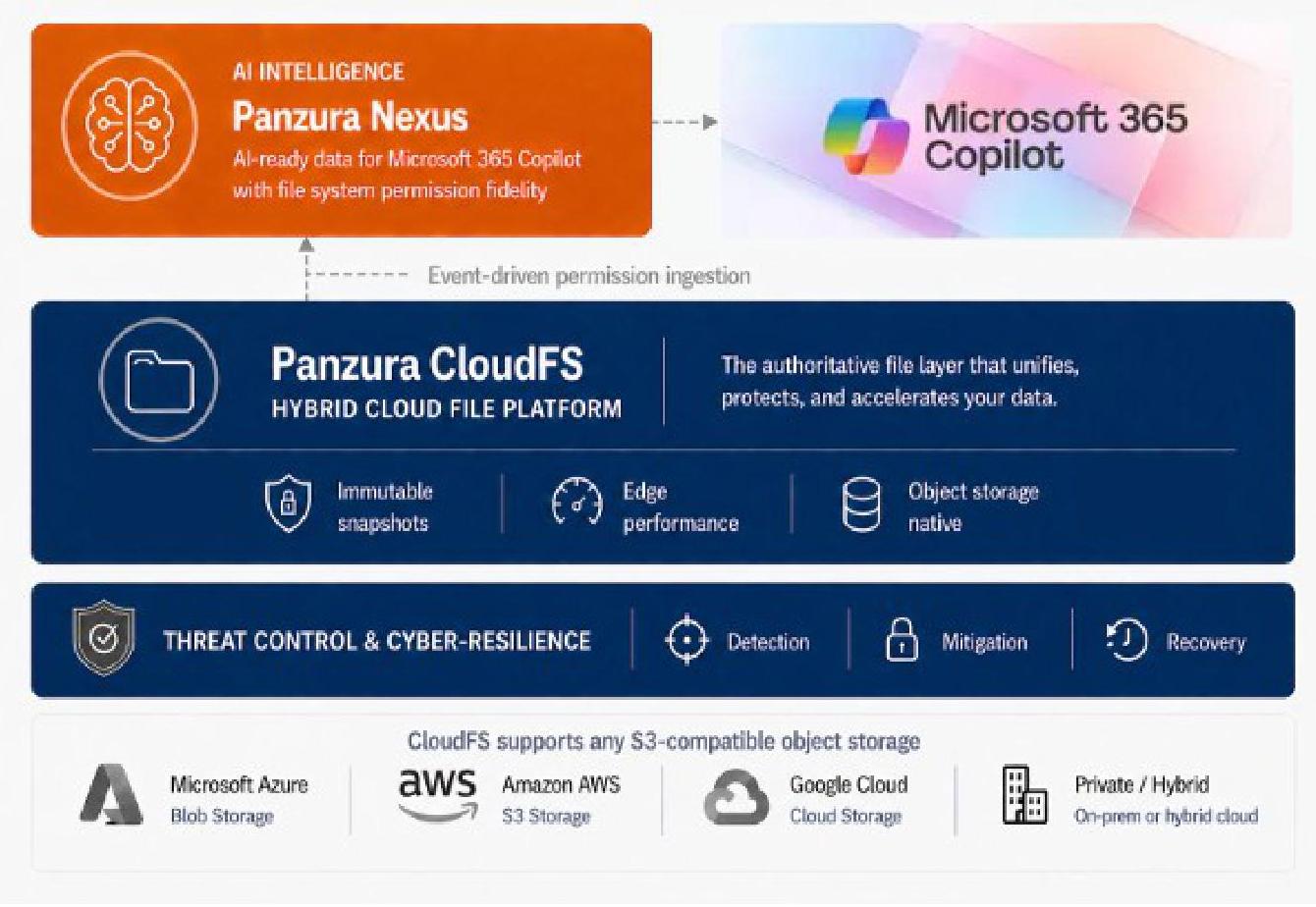
Figure 1. How Panzura CloudFS, Panzura Data Services / Threat Control, and Panzura Nexus fit together.
1.1 Executive Summary
1.1.1 The Business Challenge
Most organizations still run unstructured file data on legacy NAS hardware that is expensive to maintain, difficult to protect from ransomware, and invisible to AI. Three problems come up in almost every customer conversation:
| Problem | Impact |
|---|---|
| Aging, expensive NAS hardware | Refresh cycles are costly; capacity and performance don't scale with data growth |
| Limited ransomware resilience | Traditional NAS and backup can be encrypted or deleted along with production data |
| Data is invisible to AI | Microsoft Copilot and other AI tools cannot see or search file server content, so employees can't ask questions about it |
| Compliance and audit overhead | Finding out who touched what, and when, across a file server is slow and manual |
1.1.2 The Solution
Panzura Express combines CloudFS, Data Services with Threat Control, and Nexus into one offer that a channel partner can sell, deploy, and support as a unit:
- Panzura CloudFS replaces the physical file server with a cloud-backed NAS node. Active data stays cached locally for LAN speed; every version is protected in immutable object storage.
- Panzura Nexus connects that same CloudFS data to Microsoft Copilot, so employees can ask natural-language questions about their files without moving or duplicating any data.
- Panzura Data Services with Threat Control watches everything happening on the file system, gives administrators fast search and audit tools, and automatically alerts to ransomware and suspicious user behavior before it spreads. Because all three products share the same CloudFS data plane, the customer buys one storage foundation and layers AI access and security on top of it, rather than standing up separate systems for storage, search, and security.
1.1.3 Why This, Why Now
| Outcome | How the Bundle Delivers It |
|---|---|
| Lower total cost of ownership | Cloud-tiered storage with local caching replaces costly NAS refresh cycles |
| Ransomware resilience | Immutable snapshots plus Threat Control's automatic user lockout limit blast radius and speed recovery |
| AI-ready data, without new risk | Nexus enforces existing CloudFS permissions inside every Copilot conversation |
| Audit and compliance readiness | Full-text, near-real-time search across file activity and audit logs |
| Outcome | How the Bundle Delivers It |
|---|---|
| One partner-led deployment | A single, coordinated implementation plan instead of three disconnected projects |
1.1.4 Who This Solution Is For
The bundle is designed to be sold and delivered by channel partners, VARs and MSSPs into organizations with unstructured file data, an aging NAS footprint, and a Microsoft 365 / Copilot investment they aren't yet getting full value from. It shows up especially well in file-heavy, compliance-sensitive verticals:
| Vertical | Why It Fits |
|---|---|
| Architecture, Engineering & Construction (AEC) |
Large CAD/BIM files, project team collaboration, long document retention needs |
| Healthcare | Strict access-control and audit requirements alongside large imaging files |
| Media & Entertainment | Very large files and a need for fast local access plus durable, scalable storage |
| Financial Services | Compliance, audit trail, and ransomware-resilience requirements are front and center |
| Manufacturing | Engineering documents, and growing data volumes |
1.2 Solution Overview
1.2.1 Panzura CloudFS - Single-Site NAS Foundation
Panzura CloudFS consolidates unstructured file data onto a hybrid cloud storage platform that looks and behaves like a local network drive to end users, while every byte is protected in cloud object storage. A single Panzura virtual appliance node replaces a traditional NAS filer at the site or in the cloud, serving files over standard SMB, NFS, and S3 protocols while continuously and securely synchronizing with the cloud.
- Local performance: Smart Cache keeps frequently used files on fast local storage, so users experience LAN-speed access.
- Cloud-scale capacity: The cloud, not the local appliance, is the authoritative and durable copy of every file and every version. Scale capacity independently of local infrastructure with any S3compatible cloud object platform.
- Built-in resilience: Immutable snapshots for recovery and ransomware protection, inline deduplication and compression, and end-to-end encryption, FIPS 140-3 compliant.
1.2.2 Panzura Nexus - AI-Ready Data Access
Panzura Nexus is the integration layer that connects CloudFS to Microsoft Copilot. Administrators can selectively ingest file content, metadata, and change events from CloudFS into Microsoft's AI ecosystem via a Microsoft Graph Connector while continuously enforcing the same Active Directory permissions already in place on the file system. The result: employees can ask Copilot natural-
language questions about the organization's own files and receive permission-aware answers, without any file data being duplicated into a separate, unsecured index.
- Native CloudFS integration: ingests data, metadata, and security attributes directly from the file system.
- Access control preserved: Active Directory + Entra ID Connector for user identity mapping to ensure accurate permission mapping for every CloudFS user, enforcement of ACLs during AIbased search and conversations, and prevention of unauthorized data exposure in Copilot responses.
- Governed ingestion: policies and rules control exactly which folders, file types, and sizes are indexed.
- Nexus Dashboard: a centralized management and analytics platform designed to provide unified visibility and control across global file system deployments.
1.2.3 Panzura Data Services & Threat Control - Visibility, Compliance, and Ransomware Defense
Panzura Data Services offers lightning-fast file search, audit, analysis, and recovery across files in CloudFS. Its Threat Control capabilities provide a robust safety net against threats to file integrity. MLpowered behavioral analytics detect ransomware and data exfiltration at their earliest stage in the file system, before threats can spread laterally to compromise servers, databases, and critical applications.
| Tier | What It Adds |
|---|---|
| Basic (included) | Pulse health monitoring, storage/network alerts, node and dataset inventory |
| Search | Near-real-time full-text file search, point-in-time recovery, quotas, storage analytics |
| Audit | Searchable audit trail of every file operation, compliance reporting, alerting on suspicious activity |
| Threat Control | ML behavioral baselining per user; automatic detection and lockout for ransomware and anomalous activity |
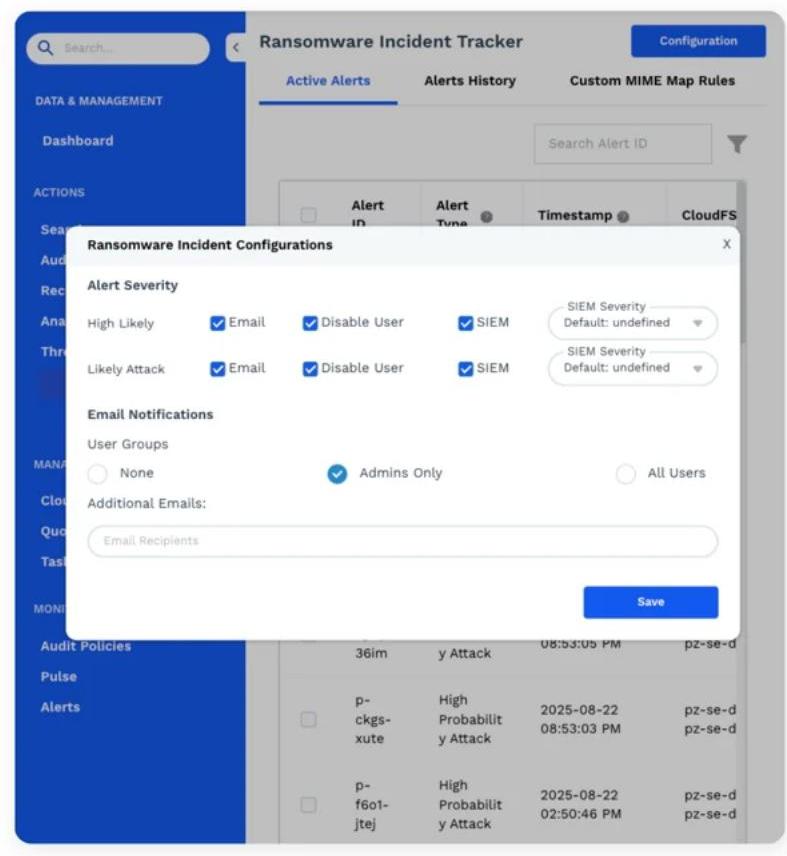
Figure 2. Panzura Data Services and Threat Control sit alongside CloudFS, giving administrators one place to search, audit, and defend the file system.
1.3 Solution Architecture
1.3.1 How the Components Work Together
Data flows from the customer site into CloudFS, and is then read by Nexus and presented to Copilot to enable user interaction with their data. All the while Panzura Data Services monitors for any ransomware events.
Panzura Single-Site NAS Solution: How the Pieces Fit Together
CloudFS - Panzura Data Services / Threat Control - Panzura Nexus for Microsoft Copilot
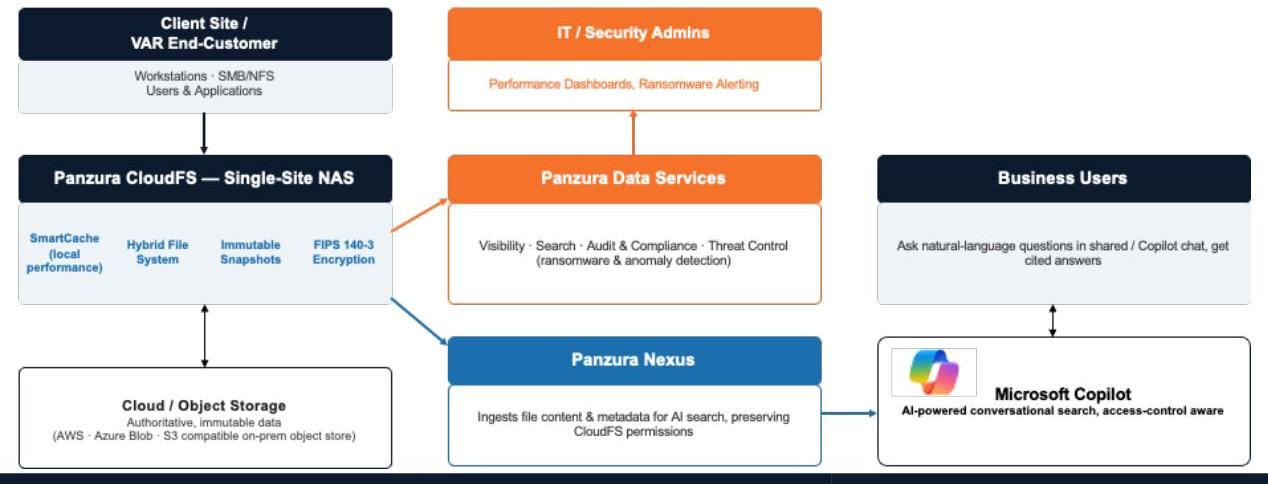
Figure 3. End-to-end data flow across CloudFS, Panzura Data Services / Threat Control, and Panzura Nexus.
- Users read and write files on the local CloudFS node over SMB/NFS/S3, at LAN speed.
- CloudFS uploads snapshots of changed data and metadata to immutable cloud object storage the system of record.
- Panzura Data Services continuously reads CloudFS audit events for search, audit, and analytics, and Threat Control scores every user's behavior against their own baseline.
- Panzura Nexus ingests permitted file content and metadata into Microsoft Copilot, respecting the same access controls end to end.
- Business users converse with Copilot; IT and security teams work from Panzura portals and dashboards.
1.3.2 Panzura CloudFS Architecture
A single-site NAS deployment runs one CloudFS node, the Master, which owns all licensing and configuration for the deployment. Where high availability is required, that Master is paired with a dedicated HA-Local standby which can be deployed on premise or in the cloud.
| Node Role | Purpose |
|---|---|
| Master | The single managing node for the deployment. Licenses, shares, encryption certificates, and all other configurations are set here. |
| HA-Local | An optional, dedicated standby for the Master, at the same site, for automatic or manual failover. |
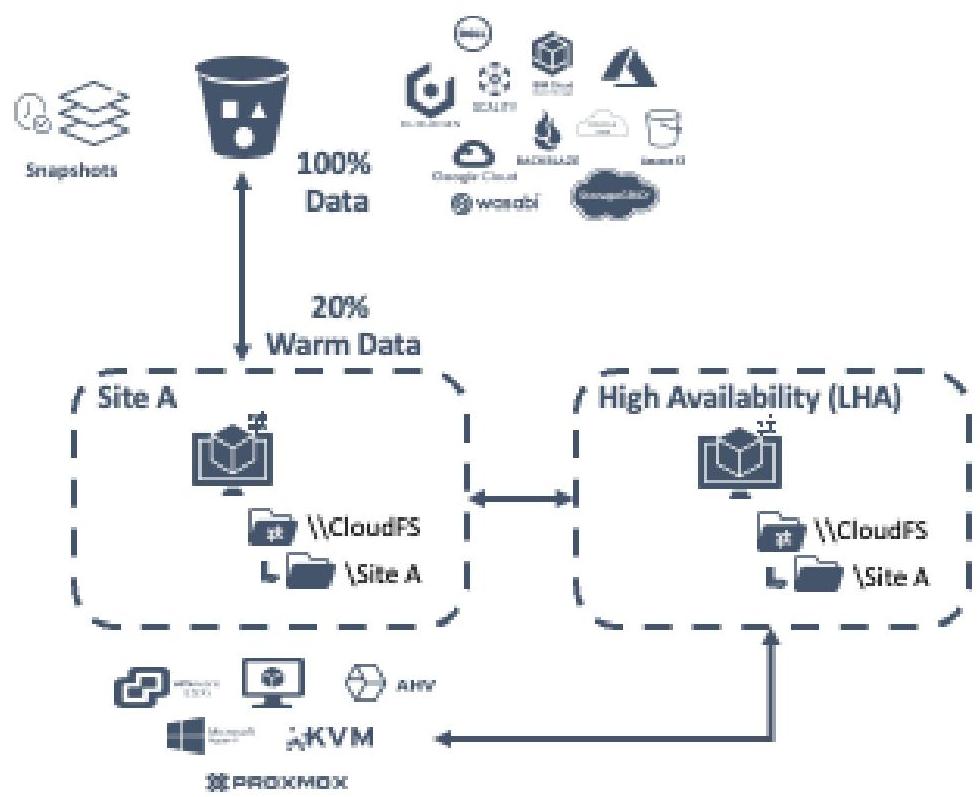
Figure 4. A single-site CloudFS deployment: one Master node, an optional HA-Local standby, and shared cloud storage.
The Master node holds the deployment licensing and configuration directly - there is no separate management layer to stand up. If an HA-Local standby is added later, it inherits the Master's configuration automatically rather than requiring manual setup.
What the Master Manages
- Licensing - the CloudFS license token and any add-on licenses.
- Encryption certificates are used for node-to-cloud communication and, if an HA-Local standby is present, node-to-node communication.
- SMB shares and NFS exports.
- Drive file size, snapshot schedule, deduplication, and compression settings.
- Cloud upload order and SMB signing mode.
Node Capabilities
| Category | Capabilities |
|---|---|
| Software | 128-bit transactional object file system; intelligent read/write caching; in-band policy engine; user-managed snapshots; global file locking for SMB; high availability |
| Security | Active Directory integration; extended file system ACLs; Kerberos authentication; KMIP support; inline deduplication; multi-protocol SMBv3/NFSv4; FIPS 140-3 encryption; SNMPv3 monitoring and alerting |
1.3.3 Panzura Nexus Architecture
Nexus architecture centers on three components working together: CloudFS as the storage source, Microsoft Copilot as the AI system, and on-premises Active Directory (synchronized to Microsoft Entra ID) for identity mapping. Data governance policies and rules sit alongside these three to control exactly what gets ingested.
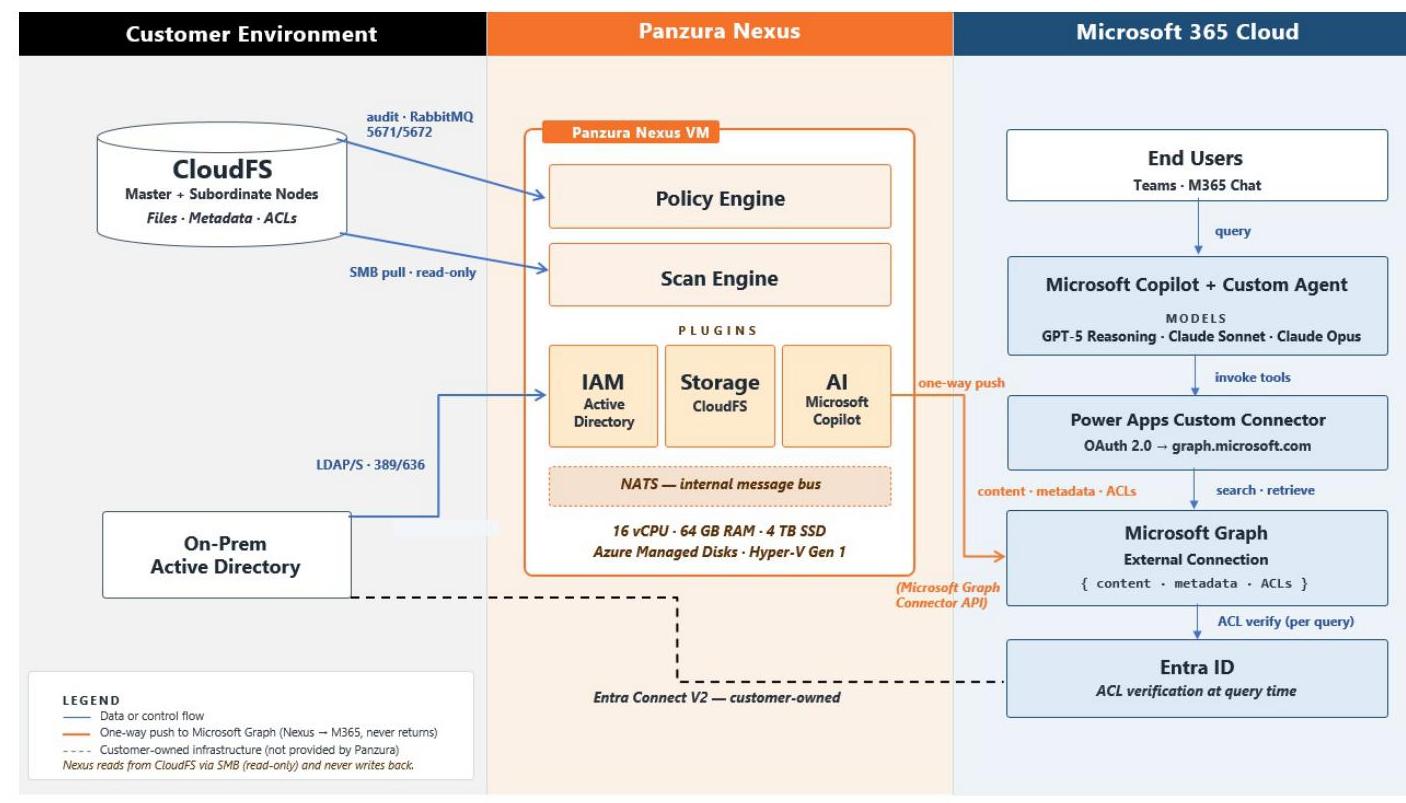
Figure 5. Panzura Nexus integrates CloudFS, Active Directory, and Microsoft Copilot, with an admin-configured connector and governance policy controlling ingestion.
| Building Block | Role |
|---|---|
| CloudFS plugin | Connects to a CloudFS node over SMB on the same LAN segment for fast, secure read access |
| Microsoft Copilot plugin | Registers a Graph Connector so ingested content and metadata become searchable in Copilot |
| Identity management (AD/Entra) | Maps CloudFS users and groups to Entra ID accounts so permissions carry through |
| Rules & policy | Defines which paths, file types, sizes, and schedules are in scope for ingestion |
Rules: Governing What Gets Ingested
Rules and Policies provide a governance framework that defines how data is ingested, processed, and interacted with. This framework can be applied based on content within specific directories, file path patterns, file extensions, file size, file timestamps, file ownership, and file modification attributes.
| Criterion | What It Filters On |
|---|---|
| File Extension | Supported out of the box: .docx, .doc, .txt, .pdf, .jpeg, .jpg, .jpe, .jfif, .png, and .dwg. Customer's own specific extensions can also be entered. |
| File Path | A PCRE path pattern, with optional case sensitivity and inclusive/exclusive matching |
| File Size | Supported file size criteria are "Greater than" "Less than," "Equal to," and "Between." Minimum size value is 1 MB. |
| File Timestamps | Created or modified, with Before / After / Between date operators |
A Data Insight Policy then combines a source (CloudFS), a destination (Copilot), an identity system (Active Directory), a set of rules, and a schedule. Policies default to Inactive on creation so administrators can execute a dry run to ensure that the right files are matched before any data is ingested into Copilot.
1.3.4 Panzura Data Services & Threat Control Architecture
Panzura Data Services reads CloudFS audit records and system telemetry directly, with no agents to install on client machines and no data duplicated outside the CloudFS environment. Threat Control adds a behavioral model per user: it learns what normal file activity looks like for that person and raises an alert, or automatically disables the account, when activity deviates in ways consistent with ransomware or data exfiltration.
- Detection surface: file creates, reads, writes, moves, renames, deletes, and permission changes.
- Baseline model: a rolling 90-day, per-user behavioral profile that adapts automatically to legitimate changes such as a new role or project, minimizing false positives. Audit log retention can be extended to 5 years via licensing.
- Response options: log for audit, notify administrators, or automatically disable the affected account, configurable by severity.
- Recovery path: Panzura does not attempt to auto-clean ransomware; it isolates the threat and gives administrators a clear, auditable path to restore clean data from immutable snapshots.
Note: Example of containing a ransomware attack: When ransomware begins encrypting files, Threat Control flags the unusual write pattern and disables the compromised account within seconds, not the months it can take to notice with signature-based tools alone. Administrators then use the audit trail to see exactly which files and directories were touched, and during what window, so they can restore precisely those items from a preattack snapshot without discarding legitimate new data.
1.4 Design Considerations
This section gives solution architects the sizing, protection, security, and connectivity detail needed to design a deployment for a specific customer site. Treat it as the design-time summary, and the underlying CloudFS, Nexus, and Data Services administration guides (Parts 1-3 of this document) as the field reference during and after deployment.
1.4.1 Capacity & Sizing
Sizing a single-site deployment mainly means answering two questions: how much data needs to be cached locally for LAN-speed access, and how much compute the Nexus AI-connector node needs. Panzura Data Services and Threat Control monitor CloudFS telemetry rather than a separate data copy, so they do not impact performance.
Panzura CloudFS Node
| Setting | Guidance |
|---|---|
| Cloud storage to allocate |
Estimate the total data that will move to the cloud; default starting point is 25TB and grows with the customer's dataset |
| Cache percentage | Percentage of cloud-stored data kept locally for fast access; <10% is a typical starting point, tuned by use case |
| Network | 10 Gbps LAN recommended; WAN/cloud link sized to the rate at which new data is created |
| Deployment mode | Inline (separate LAN/WAN interfaces) is recommended when cloud and client traffic can be split onto different networks; otherwise, one-arm (single interface) is also available |
| Drive file size | The unit CloudFS uses to chunk data before uploading; the default suits most 10 Mbps+ links and should only be changed with Panzura Support |
| Data compression & deduplication |
Both enabled by default |
Panzura Nexus Host
| Resource | Minimum Requirement |
|---|---|
| CPU | 16 cores |
| Memory | 64 GB RAM |
| Storage | 4 TB SSD for the Nexus application |
| Resource | Minimum Requirement |
|---|---|
| Network | 10 Gbps LAN (required), 1 Gbps WAN (optional) — Nexus must sit on the same LAN segment as a CloudFS node |
| Supported platforms | Microsoft Azure, Hyper-V, AWS, VMware, and Linux KVM (RHEL 9.4+) |
| Browser (admin UI) | Google Chrome, Microsoft Edge, or Firefox ESR (current release); Safari 18.3+ on macOS |
1.4.2 Cloud Storage Provider Options
CloudFS is validated against every major public and private object storage platform, so the bundle fits whatever cloud strategy the customer already has. The table below is representative; confirm current certification for any provider not listed here with Panzura before quoting.
| Provider | Certified Tier(s) | Typical Use |
|---|---|---|
| Amazon S3 | S3, Standard, Standard-IA, Intelligent-Tiering, One Zone-IA, Glacier Instant Retrieval | General purpose through long-term archive |
| Microsoft Azure | Blob Storage Hot, Cool, and Cold – (Storage Classes supported) | General purpose and infrequent access |
| Google Cloud Storage | Standard, Nearline, Coldline (Storage classes supported) | High-availability through cold backup/DR |
| IBM Cloud Object Storage | Standard, Vault, Cold Vault, Flex | Active data through cold, unpredictable workloads |
| Wasabi | Wasabi Hot Cloud Storage | Cost-sensitive general purpose, free egress |
| Dell EMC ECS / Virtustream, NetApp StorageGRID, Scality, Cloudian, Hitachi HCP, IIJ GIO, WD ActiveScale | S3-compatible interfaces | Private, hybrid, or sovereign-cloud object storage |
Note: Tiers marked for infrequent or archive access (Standard-IA, Coldline, Azure Archive, Glacier) typically carry a per-GB retrieval fee — factor this into the customer's total cost model if Threat Control recovery or Panzura Data Services search will regularly touch cold data. Full compatibility details and per-provider setup steps are in the CloudFS Administration Guide.
1.4.3 Data Protection: Snapshots & Immutability
CloudFS takes two kinds of snapshot. System-managed snapshots run continuously in the background. User-managed snapshots are what administrators, and end users actually interact with for recovery.
| Retention Setting | Default |
|---|---|
| Yearly snapshots kept | 1 (taken every January 1st) |
| Monthly snapshots kept | 11 |
| Retention Setting | Default |
|---|---|
| Weekly snapshots kept | 3 |
| Nightly snapshots kept | 6 |
| Hourly snapshots kept | 24 |
A node supports more than 10,000 user-managed snapshots, so historical retention is rarely a constraint even on an active file share. Windows users can recover previous versions directly through Windows' built-in Previous Versions capability against the CloudFS share, without administrator involvement.
Note: Why immutability matters for ransomware recovery: CloudFS never overwrites a stored data block every change is written as a new, non-destructive object, and metadata pointers are updated to reflect the current state. That is what makes rolling back to a pre-attack snapshot a metadata operation rather than a data-copy operation: it is fast, doesn't consume meaningful extra storage, and cannot be undone by an attacker who has compromised a user account, because the attacker never had write access to already-stored blocks in the first place.
1.4.4 Performance: Smart Cache
Smart Cache is what makes cloud-backed storage feel local. It reserves a configurable percentage of node storage ( default, maximum) to keep hot, warm, and cold file blocks available on the node without a round-trip to the cloud.
- Auto Cache (recommended default): the node evicts the least-recently-used files automatically as new data arrives.
- Pinning: forces specific data to stay resident — guarantees LAN-speed access, at the cost of cache space, so use it selectively (e.g., a specific active project folder).
- Prepopulate: warms the cache ahead of user access, without reducing space available to other data - Panzura recommends enabling this on any auto-cache policy. For a single-site deployment there is one cache policy on the one CloudFS node, typically scoped to the active project folders that benefit most from pinning and pre-population.
1.4.5 Identity, Access Control & Compliance
Panzura CloudFS - Role-Based Access Control
RBAC controls who can log in to the CloudFS web UI and what they can do once they're in. It integrates with the customer's existing identity provider rather than maintaining a separate user store.
| Identity Provider | Protocol |
|---|---|
| Microsoft Entra ID | OIDC |
| Okta | SAML or OIDC |
| Active Directory Federation Services (ADFS) | SAML |
Roles (administrator, operator, viewer, or fully custom) map to Active Directory groups, so a customer's existing AD structure drives who can, for example, edit System Settings versus only view Dashboards. This is what makes RBAC audit-friendly: access changes flow through the customer's own AD/identity governance process rather than a separate Panzura user list.
Panzura Nexus
- Access-control aware ingestion: Nexus never grants a Copilot user visibility into a file they could not already access directly on CloudFS.
- Governed scope: Rules and policies restrict ingestion to approved paths, file types, and sizes; OCR can be enabled selectively for scanned content.
Capacity Governance: Quota Management
Quota Management empowers organizations to curb file-system usage by certain user(s) and/or group(s), optimize system usage without overprovisioning, and ensure that critical business units always have the space to operate.
- Alerting: administrators are notified automatically once usage crosses of an allocated quota (not configurable).
- Bulk management: quotas can be applied one user/group at a time or in bulk via CSV import and reported on via CSV for capacity planning and compliance evidence.
Encryption & Key Management
- Data encryption: military-grade, FIPS 140-3 certified encryption protects data sent to and stored in the cloud. Every node has a default Panzura-issued certificate; production deployments should load a customer-managed certificate instead.
- Key management: CloudFS supports the Key Management Interoperability Protocol (KMIP) for organizations that manage their own encryption keys on an external KMIP server rather than relying on Panzura-issued certificates.
- Web/administrative access: a separate web certificate secures the admin UI itself and can likewise be replaced with a certificate.
- Audit trail: a centralized, searchable record of create/update/delete actions across the deployment, viewable on the Master and exportable for compliance evidence.
Panzura Data Services & Threat Control
- Behavioral security, not just signatures: Threat Control profiles each user individually, so it catches ransomware and insider threats that signature-based tools miss.
- Configurable automated response: log, alert, or automatically disable an account, with a rolling 90-day baseline that adapts to legitimate role changes.
1.4.6 High Availability & Disaster Recovery
| Capability | What It Protects Against |
|---|---|
| CloudFS HA-Local | A dedicated standby takes over the node's identity and operations on failure (manual or automatic failover) |
| CloudFS HA-Local with shared address |
Adds a shared hostname/IP so an Auto Failover pair can fail over without any client remapping |
| CloudFS DR Cloud Recovery | Full node rebuild directly from cloud metadata after a site-level disaster |
| Nexus Backup & Restore | Local or cloud (AWS S3) backup of Nexus configuration and catalog, with scheduled retention |
Auto Failover requires a shared virtual IP (VIP) between the active CloudFS and standby HA-Local pair; the two nodes continuously exchange health and status both directly (peer-to-peer over SSH) and
indirectly (state files posted to the cloud), so a failover can be triggered automatically the moment the active node stops responding, no manual intervention required.
1.4.7 Licensing Model
| Component | Licensing Mechanism |
|---|---|
| CloudFS | A single license token tied to managed storage capacity; installed via the setup wizard or the web UI License Manager |
| Nexus | License tied to the capacity of the source storage system (e.g., CloudFS managed capacity), registered in the Nexus System Management UI |
| Panzura Data Services | Subscription - includes Performance monitoring, Search, Audit, and Threat Control |
PART 2
Panzura CloudFS
2.1 Executive Summary
Panzura Express is a rapidly deployable solution bundle built on Panzura CloudFS, purpose-built to replace traditional single-site NAS storage for organizations that need enterprise-grade performance, resilience, and cloud economics without the complexity of a multi-site global file system rollout.
This guide provides the technical foundation for planning, deploying, and validating a Panzura Express (CloudFS) implementation at a single site. It is intended for solution architects, implementation engineers, and channel partner technical teams (VAR/MSP) delivering the bundle to end customers.
Panzura Express addresses the core single-site NAS replacement use case using the CloudFS NAS deployment model: unstructured data is consolidated into cloud object storage while a local Panzura node provides LAN-speed access through intelligent caching. The result is a single virtual appliance that eliminates the need for separate primary storage, backup, and archive infrastructure at the site.
Who should use this guide
- Sales Engineers and Solution Architects scoping a single-site NAS opportunity
- VAR / MSP implementation engineers deploying the Panzura Express bundle
2.2 Solution Overview
2.2.1 What Panzura Express Delivers
Panzura Express packages Panzura CloudFS into 3 tier options, single-site configuration with prevalidated sizing, and a streamlined deployment path. It is designed to be deployed by a channel partner in hours, not days.
At its core, the bundle relies on CloudFS's ability to present cloud object storage to end users and applications as a standard local file share (unified protocol support SMB, NFS, and S3), while transparently and continuously protecting all data in the cloud, replacing a traditional single-site NAS appliance with cloud economics and no loss of local, LAN-speed performance.
2.2.2 CloudFS NAS: The Single-Site Deployment Model
Panzura Express is built on the CloudFS NAS deployment model, purpose-fit for single-site NAS replacement:
- CloudFS NAS consolidates unstructured data to the cloud to eliminate islands of traditional NAS storage, keeping active data cached close to users.
- Scale out path to CloudFS Collaboration extends the model to real-time, multi-site collaboration with global file locking; relevant if the customer later expands beyond a single site.
Single-Site NAS Feature Highlights
- Multiprotocol file access: native SMB and NFS shares, so existing clients, mapped drives, and applications work unchanged on day one.
- LAN-speed local performance: Smart Cache keeps hot working-set data on local high-performance disk while the cloud holds the authoritative data set.
- Active Directory integration: Kerberos authentication and extended file system ACLs enforce the same permissions users already have.
- Local, self-service recovery: User accessible snapshots let end users and admins restore prior file versions without a separate backup appliance or restore request to IT.
- Consolidated infrastructure: One virtual appliance replaces primary NAS storage, backup, and archive at the site, removing the need to separately size, patch, and maintain each.
- Built-in data protection: Inline deduplication, compression, and FIPS 140-3 certified encryption are on by default, with no separate licensing for basic data protection.
2.2.3 Architecture at a Glance
A Panzura node (virtual appliance) is deployed on premises or in the cloud. The node presents unified protocol support SMB, NFS, and S3 shares to clients and applications, and uses Smart Cache to keep frequently accessed ("hot") data locally on high-performance disk while the authoritative copy of all data resides in the cloud object store. All data is protected in the cloud regardless of caching policy.
2.3 Prerequisites & Compatibility
2.3.1 Supported Platforms
- Hypervisors supported: VMware, Hyper-V, Nutanix AHV, Red Hat, KVM, and Proxmox
- Panzura CloudFS for Amazon (AMI)
- Panzura CloudFS for Azure
- Panzura CloudFS for GCP
2.3.2 Supported Browser (WebUI / Setup Wizard)
- Google Chrome 59.03071 or later (required for the setup wizard)
- Firefox and Edge are supported for general WebUI administration
2.3.3 Cloud Storage Provider Compatibility
The following object storage tiers are validated for use with CloudFS and are the most common choices for single-site Panzura Express deployments:
| Provider | Storage Tier | Typical Use |
|---|---|---|
| Amazon S3 | S3 Standard / Intelligent-Tiering | Primary tier for active single-site NAS data |
| Microsoft Azure | Blob Storage Cold - (Storage Classes supported) |
Primary tier for Azure-committed customers |
| Google Cloud Storage | Regional / Multi-Regional | Primary tier for GCP-committed customers |
| Provider | Storage Tier | Typical Use |
|---|---|---|
| Wasabi | Object Cloud Storage | Cost-optimized alternative, S3- compatible |
Note: CloudFS supports Storage Class for AWS, Azure, and GCP to optimize the target storage tier. Full vendor list (Cloudian, Dell/EMC ECS, Hitachi HCP, IBM COS, Scality, StorageGRID, ActiveScale, etc.) is documented in the CloudFS Overview KB article.
2.3.4 Express Sizing Configurations
Exact node sizing (CPU, RAM, cache disk) should always be confirmed with a Panzura Sales Engineer or Solution Architect based on active user count, working-set size, and expected SMB connection load. The table below shows the standard Panzura Express sizing tiers, for planning reference only:
| Single-Site NAS |
User / Concurrent Connections |
Storage TB |
Meta GB | Working Cache TB |
Total Cache |
CPU | RAM GB |
|---|---|---|---|---|---|---|---|
| SM | 25 | 25 | 342 | 1.25 | 1.592 | 8 | 24 |
| MD | 50 | 50 | 633 | 1.5 | 2.133 | 8 | 24 |
| LG | 100 | 100 | 1,216 | 2 | 3.216 | 10 | 24 |
Note: This table is not a substitute for proper sizing. Consult your Panzura Sales Engineer for a sizing recommendation specific to the customer's environment if it differs from these recommendations.
2.3.5 Pre-Engagement Discovery Checklist
Gather the following before scheduling the implementation to avoid delays on-site:
- Active user / connection count and peak concurrency at the site
- Approximate working-set size ("hot" data actively accessed day-to-day) vs. total data footprint to be migrated
- Target cloud storage provider and account/subscription already provisioned (AWS, Azure, GCS, or Wasabi)
- Network topology: One-arm vs. Inline, available static IP addresses, subnet/gateway/DNS details
- Active Directory domain name and an AD administrator account for domain join
- Unified Protocol Support: SMB, NFS, and S3
- RPO / RTO requirements to inform snapshot schedule and HA configuration, if any
- Firewall change-control process and lead time for opening required ports (see Section 2.4)
2.4 Network & Site Prerequisites
Firewalls in the traffic path to/from the Panzura node must permit the following protocol ports. In One-arm deployments, LAN and WAN traffic share the same physical interface; in Inline deployments they are separated onto distinct interfaces on different subnets.
| Port | Direction | Purpose |
|---|---|---|
| 443/TCP, 80/TCP | In (WebUI) / Out (Support) |
WebUI access; Support Assistance uploads |
| 22/TCP | Both | SSH — inter-node management traffic |
| Port | Direction | Purpose |
|---|---|---|
| 445/TCP, 445/UDP | In | SMB file protocol |
| 111, 2049, 4045 (TCP/UDP) | In | NFS (RPC, NFS, lockd) - if NFS is enabled |
| 389 (TCP/UDP) | Both | LDAP / Active Directory |
| 88 (TCP/UDP) | Out | Kerberos authentication |
| 123/UDP | Out | NTP time synchronization |
| 53 (TCP/UDP) | Out | DNS |
| 9001 - 10000, 443, 80 (HTTP/HTTPS) |
Both | S3 / LAN and WAN access |
Deployment mode selection:
- One-arm: client and cloud traffic share a single LAN interface. Use only when both traffic types are on the same network.
- Inline: client (LAN) and cloud (WAN) traffic use separate interfaces on different subnets. Recommended when client and cloud networks are segmented. Note: WAN accelerators (e.g., Riverbed Steelhead, Cisco WAAS) must not sit in the network path between Panzura nodes, between nodes and the cloud, or between nodes and clients.
2.5 Deployment Steps
The following condensed sequence reflects the CloudFS setup wizard. Complete the pre-installation checklist (hostnames, IP addressing, AD credentials, cloud storage credentials, and licensing) before starting.
- Locate the node's management IP (default: 192.168.88.88, or via DHCP) and browse to it in Chrome. Log in with default credentials (admin / admin), or the AMI/Azure-generated password.
- Accept the End User License Agreement and enter admin contact details.
- Set a secure admin password (minimum 8 characters) meeting corporate policy.
- Configure Network Settings: choose Shared or Dedicated network, then set static or DHCP addressing for the client (LAN) interface (static is recommended).
- Configure System Settings: hostname, site location, contact email, and DNS domain.
- Apply Panzura licensing via a license token (recommended) or individual license files.
- Configure NTP time settings (up to 4 servers).
- Set the node's Role: Master (first node in the deployment) or Local High Availability node if an HA configuration is appropriate.
- Allocate datastores: assign at least one disk to metadata and one to cache (SSD or SSD-equivalent recommended for both).
- Configure the Cloud Storage Provider: enter credentials and target bucket/path for the chosen object storage tier.
- Select protocols to enable - SMB, NFS, or both.
- Join Microsoft Active Directory: enter domain name, and AD administrator credentials for SMB authentication.
- Review all settings and click Finish to complete the wizard, then proceed to the WebUI home page.
Note: Once a disk is allocated to metadata or cache, it cannot be reallocated. Confirm datastore allocation carefully before proceeding.
2.6 Post-Deployment Validation
After initial configuration, run the built-in Health Check Diagnostics to confirm the node is fully operational before handing off to the customer:
- Log in to the CloudFS WebUI with administrator or RBAC (Node Operations write access) credentials.
- Navigate to Maintenance > Diagnostic Tools > Health Check Diagnostics.
- Click Run, and review results across all checks.
- Download the timestamped report for the customer handoff / implementation record.
Key checks to confirm:
| Check | What It Confirms |
|---|---|
| CSP Cloud Connect / Bucket List / Write-Read |
Cloud storage provider connectivity and read/write path |
| AD Join Status | Active Directory authentication is functioning for SMB |
| Licenses / Processes | All required licenses installed; services running |
| Time Offset w/ NTP | System clock is synchronized |
| Zpool Status | Local disk pool health (metadata/cache) |
| Master/User Snapshots | Snapshot schedule is enabled and functioning |
Note: For a full list of all diagnostics reference the Health Check Diagnostics KB.
2.7 Data Protection & Security
2.7.1 Snapshots
CloudFS uses continuous system-managed snapshots, and administrator-scheduled user-managed snapshots to provide point-in-time recovery visible to end users without IT involvement. Establish a snapshot schedule aligned to the customer's RPO requirements as part of implementation.
2.7.2 Smart Cache Configuration
Smart Cache reserves a percentage of local node storage to intelligently track hot, warm, and cold data blocks as they are accessed, so most reads are served from local disk rather than from the cloud. Cache policies (rules and actions) give fine-grained control over what is kept local:
- Use the auto cache action with prepopulate enabled as the default policy; this keeps files available in disk cache for end users without forcing a reduction in cache capacity.
- Use pinning only where guaranteed LAN-speed performance is required for a specific share or folder, since pinned data consumes dedicated cache space.
- Data remains fully protected in the cloud regardless of cache policy or pinning configuration; caching affects performance only, never durability. Note: For complete smart cache set up reference the Setting Up Smart Cache KB. For a detailed overview of Snapshots please see the Setting Up Snapshots KB.
2.7.3 Encryption & Compliance
- FIPS 140-3 certified encryption
- Extended file system ACLs
- Kerberos authentication and Active Directory integration
- Key Management Interoperability Protocol (KMIP) support
2.7.4 Disaster Recovery
Because the cloud object store is the authoritative data source, a Panzura node can be fully rebuilt from the cloud after a hardware failure or disaster; the file system comes online from cloud metadata first, with remaining data blocks recovered in priority order (DR Cloud Recovery).
2.8 Operational Best Practices
- Use static IP addressing for the node rather than DHCP.
- Enable the auto cache action with prepopulate for Smart Cache policies to ensure end-user data availability without unnecessary cache reduction.
- Reserve pinning for data that requires guaranteed LAN-speed performance; pinning consumes cache capacity.
- Enable Support Assistance (SA) unless the site requires Private Secure Site Mode, to allow Panzura Support to proactively monitor node health.
- Review the Audit Trail feature to support compliance and security reporting requirements from day one.
2.9 Appendix: Reference Links
CloudFS
- Panzura CloudFS Overview: know.panzura.com/overview-panzura-cloudfs
- CloudFS Administration Guide (v8.7.0.0): know.panzura.com/cloudfs-administration-guide-forversion
- Panzura Quick Start Guide: know.panzura.com/panzura-cloudfs-quick-start-guide
- CloudFS Minimum Requirements: know.panzura.com/cloudfs-minimum-requirements
- Steps to Setup CloudFS Node: know.panzura.com/steps-to-setup-cloudfs-node-using-web-ui
- Health Check Diagnostics: know.panzura.com/health-check-diagnostics
- Hardware and Software Compatibility List: know.panzura.com/compatibility-and-support-cloudfs8
Note: This guide reflects CloudFS 8.7.0.0 documentation. Always confirm current release notes and compatibility lists at know.panzura.com before finalizing a deployment plan.
PART 3
Panzura Data Services with Threat Control
3.1 Executive Summary
Panzura Data Services (PDS) is a SaaS data management and security layer that sits above Panzura CloudFS, giving organizations a single, unified view of unstructured data wherever it lives. This guide focuses on the Threat Control capability of Panzura Data Services - ransomware detection and user behavior analytics - along with the core search, audit, and recovery services that a Threat Control response depends on.
Panzura Data Services ingests metadata and audit log streams from CloudFS nodes in near real time, indexing them for fast search, full audit trails, point-in-time recovery, and continuous behavioral analysis. Threat Control builds on this foundation to detect ransomware footprints and anomalous user behavior, alert administrators in near real time, and give incident responders the tools to investigate, contain, and recover.
Who should use this guide
- Solution architects, Sales Engineers, and Professional Services deploying Panzura Data Services and Threat Control
- VAR / MSP partners delivering PDS as part of Panzura Express
3.2 Solution Overview
3.2.1 What Panzura Data Services Delivers
Panzura Data Services provides a single, unified view and management plane for unstructured data, regardless of where it is stored. Working hand-in-glove with CloudFS, it ingests metadata and audit records to enable visibility, fast search, and observability across the global file system and connected infrastructure, without adding load to production nodes.
3.2.2 Service Tiers
- PDS Basic - included with CloudFS at no additional cost; provides Pulse operational monitoring, configurable alerts, and CloudFS/node inventory.
- PDS Search - adds fast, similarity-based search across files, directories, and snapshots on all connected file systems.
- PDS Audit - adds full audit trail search (who did what, to which file, and when), plus Recovery and Analytics.
- PDS Threat Control - adds Ransomware detection and User Behavior Analytics (UBA), the focus of this guide. Threat Control is licensed separately from PDS Basic. Note: Panzura Express provides full access to all PDS tiers.
3.2.3 How Threat Control Works
Threat Control continuously analyzes the audit log stream that PDS already ingests from CloudFS. Two detection engines run on this stream:
- Ransomware detection: pattern-matches file activity against known ransomware footprints and peripheral file indicators, and flags anomalous encryption-like behavior.
- User Behavior Analytics (UBA): builds a behavioral profile for each CloudFS user from their audit history, then raises alerts when a user's activity deviates from their own established pattern (e.g., abnormal data extraction or mass deletion). Note: Threat Control detection runs against the audit metadata already flowing into PDS, no additional agents are required on endpoints, and no data leaves the customer's CloudFS environment as part of detection.
3.3 Prerequisites & Compatibility
3.3.1 Platform & Licensing Requirements
- Panzura CloudFS 8.1.0.0 or later on all nodes to be monitored (PDS is compatible with all CloudFS releases above 8.1.0.0)
- A PDS Ransomware (Threat Control) license, applied at the organization level
- A SIEM license if integrating Threat Control alerts with a third-party SIEM platform
- Audit Logs streaming enabled at the node level (Panzura Data Services > Manage Plugins)
3.3.2 Supported Browser
- Google Chrome is recommended for the Panzura Data Services web console
- Current versions of Firefox and Edge are also supported for general administration
3.4 Account & Organization Setup
3.4.1 Setting Up Your Organization's Panzura Data Services Account
This section details the first steps to get started using Panzura Data Services.
Administrator Account
Panzura starts by creating the customer organization's designated administrator's account.
- Panzura will send them an email with the subject line Your Panzura Data Services Account Please Confirm Your Email, asking customers to confirm their email address.
- Once confirmed, the customer's organization's Panzura Data Services account, and its first user account (for your administrator) is automatically created.
- Panzura will send a second email to the administrator, with single-use login details and information on how to complete their account setup.
- Once completed, Panzura will send a final email to the administrator, confirming that the Panzura Data Services license has been applied.
3.4.2 Registering CloudFS Nodes as Monitoring Targets
After the administrator account is active, register CloudFS nodes as monitoring targets:
- Navigate to Configuration > Organization > Add Target.
- Select the Panzura CloudFS node or open NFS/SMB share to register.
- Confirm the target appears in the Dashboard target list with a Running status and that Last Scan / Next Scan timestamps are populating.
Note: Single sign-on (Azure AD or Okta with SAML 2.0) can be configured for the organization so that PDS logins are managed centrally alongside other enterprise applications.
3.5 Core Data Services Capabilities
Threat Control's investigation and recovery workflow depends directly on the following core PDS services, so implementation teams should validate each of them before production deployment.
3.5.1 Search
Search provides similarity-based, near-instant search across files, directories, and snapshots on all connected file systems. Metadata is ingested from host nodes on a periodic schedule rather than in real time. Directives such as path=, file=, and wildcarded matches allow investigators to precisely scope a search, for example, to all files with a known ransomware extension within a specific time window.
3.5.2 Audit
Audit indexes the machine-generated audit log stream from CloudFS nodes, exposing every file and directory action (copy, create, move, read, remove, rename, set permissions, write) together with the user, timestamp, and node involved. Because ransomware almost always operates through a single compromised user account, Audit is the primary tool for reconstructing the full scope of an attack.
3.5.3 Recovery
Recovery uses the same search index to locate files and folders with available snapshots, and lets an administrator restore an individual item or use CloudFS Mass File Restoration for bulk recovery, to its original or an alternate path, with optional email notification when the recovery task completes.
3.5.4 Analytics
Analytics provides at-a-glance Data Analytics (capacity, file age, file size and type distribution) and Audit Analytics (top active users, top accessed files and folders) refreshed once per day. Audit Analytics is particularly useful for baselining normal activity before Threat Control is enabled, and for triaging which users or folders were most affected after an incident.
3.6 Threat Control: Ransomware Detection
Ransomware detection is accessed at Panzura Data Services > ACTIONS > Threat Control > Ransomware. It serves as the central information hub in the event of an attack, retaining alert history for up to 13 months.
3.6.1 Active Alerts & Alert Types
Each detected incident is assigned a unique Alert ID and includes the alert type, timestamp (UTC), affected CloudFS/node, the affected user account, and a downloadable CSV of suspicious files.
| Alert Type | Meaning |
|---|---|
| Highly Probable | Known ransomware footprints and possible peripheral files found; an attack is highly probable. |
| Likely | Suspicious activity detected that could not be confirmed against expected system values, often a new or obscure ransomware family. |
| Associated Files | Peripheral files commonly associated with ransomware were found, but no attack appears to be in progress. |
3.6.2 Alert Lifecycle & Status
Each incident can be classified as New (default), Investigating, Recovering, False Positive, or Recovered. Incidents in New, Investigating, or Recovering stay under Active Alerts; marking an incident False Positive or Recovered moves it to Alert History, where it is retained for 13 months and can no longer be reclassified as active.
- Marking an alert False Positive offers the option to create a Custom MIME Map Rule from the incident, reducing recurring false positives for known file types on that CloudFS environment.
- The Users tab lets administrators Block or Mute a user directly from an incident. A blocked user loses access to all nodes in the ring until an administrator unblocks them; a muted user's alerts are suppressed but incidents are still retained for audit.
3.6.3 Configuration & Response Controls
Under Configuration, alert severity, delivery method (email and/or SIEM), and automatic user interdiction can be set per alert type. To allow automatic blocking of a suspected compromised user, the User Interdiction feature must be enabled.
3.7 Threat Control: User Behavior Analytics
User Behavior Analytics (UBA), accessed at Panzura Data Services > ACTIONS > Threat Control > User Behavior, builds an individual behavioral profile for every CloudFS user from their audit history and raises real-time alerts when activity deviates from that user's own established pattern.
3.7.1 Anomaly Detection Categories
| Alert | Trigger Example |
|---|---|
| Data Extraction | Abnormal movement or copying of data unfamiliar to the user's normal pattern (e.g., bulk copy to an external drive). |
| Data Destruction | Abnormal deletion volume, such as deleting a large amount of unusual data. |
| Unusual Behavior | Access or modification of file types in a pattern inconsistent with the user's normal behavior. |
3.7.2 User Profiles, Severity & Blocking
Each user profile progresses from Building (right after a user is added or unmuted) to Active, at which point anomaly alerts are generated against it. Severity for each anomaly is shown on a scale from -2
to 2, color-coded green (no significant change), yellow (elevated deviation), or red (reduced deviation from norm).
- The Reinstate User option unblocks a user who was automatically blocked because of a UBA alert.
- Per-user drill-down shows average daily actions, most-used file extensions, and a daily activity breakdown (copy, create, move, read, remove, rename, write) to speed up investigation.
- Muted users are excluded from new alerts, but their profile and history remain intact for audit.
3.8 Incident Response Runbook
The following sequence reflects Panzura's recommended response to a confirmed or suspected ransomware event, using Threat Control alerts together with the core Search, Audit, and Recovery services.
- Receive Notification: IT admins receive near-real-time email (and/or SIEM) alerts when suspicious activity is detected. Open the alert in the Ransomware Incident Tracker.
- Investigate and Verify: Navigate to Ransomware Incident Tracker to view active alerts. Download the Evidence CSV for the Active Alert and check whether the listed files are encrypted on the affected CloudFS node.
- Slow the Spread: If encryption is confirmed, stop the infected user from writing further, and disable the CIFS license on affected nodes (CloudFS Management Dashboard > Configuration > License Manager > Installed License Modules > Deactivate) to prevent further infected files syncing to cloud storage.
- Stop the Attack at All Sources: Identify and isolate the true point of infection (e.g., an infected laptop or compromised account) outside of CloudFS; run antivirus/anti-spyware and disable the source account. Confirm the attack is fully contained before restoring any data.
- Identify All Affected Files: Use Audit to pull every action taken by the infiltrated user account, and use Search filtered by the ransomware file extension, across the full alert time window (widen the window beyond the first/last alert timestamps, since the Evidence CSV may not capture every affected file).
- Rapid Restore: For a small number of affected files, use PDS Targeted Recovery to restore individual files to the appropriate snapshot. For large-scale impact, use CloudFS Mass File Restoration (CloudFS 8.1+). Note: For more detail reference the Panzura Data Services Ransomware KB.
3.9 SIEM Integration & Notifications
Threat Control alerts (Ransomware and User Behavior) can be delivered by email and/or forwarded to a SIEM platform for centralized log correlation and response. SIEM integrates with tools like Rapid7 and Splunk Cloud, offering enhanced visibility into cloud services and infrastructure. It centralizes log data, threat detection, and response, providing quicker access to expert advice whenever an alert is triggered.
3.9.1 Rapid7 InsightIDR
- Install and activate the Rapid7 Insight Platform Collector on a Linux host, then create a Custom Logs event source listening on a chosen TCP port.
- In Panzura Data Services > Configuration > SIEM Integrations, add the connector's IP address and port, and set the alert severity level to forward.
3.9.2 Splunk Cloud
- In Splunk Cloud, create an HTTP Event Collector token under Data Inputs, and note the token value.
- In Panzura Data Services > Configuration > SIEM Integrations, enable SIEM, select Splunk Cloud, enter the URL/port and token, choose a severity level, and click Update. Note: Email notifications can be configured independently of SIEM integration and sent to PDS user groups or specific individual addresses under each feature's Configuration panel.
3.10 Operational Best Practices
- Enable Audit Log streaming on every node before enabling Threat Control, UBA profiles and ransomware detection both depend on a complete audit history.
- Let User Behavior profiles fully build (status: Active) before relying on their alerts; a profile still in Building status has not yet established a reliable baseline.
- Use Audit Analytics to baseline normal top-user and top-folder activity so anomalies are easier to distinguish from normal business change.
- Pilot alerting in notification-only mode before enabling automatic user interdiction, to avoid disrupting legitimate work while thresholds are tuned.
- Create Custom MIME Map Rules for known, benign file types that repeatedly trigger false positives, rather than muting an entire user.
- Route Threat Control alerts to a SIEM platform when the customer already has a security operations workflow, so ransomware and UBA alerts are triaged alongside other security telemetry.
- Document the incident response runbook (Section 3.8) with the customer's actual contacts and escalation path.
3.11 Appendix: Reference Links
Panzura Data Services
- Panzura Data Services Overview: know.panzura.com/panzura-data-services-basic-tier-overview
- Setting Up Your Organization's PDS Account: know.panzura.com/setting-up-data-services-account
- Panzura Data Services Search: know.panzura.com/data-services/userguide/search
- Panzura Data Services Audit: know.panzura.com/data-services/userguide/file-audit
- Panzura Data Services Recovery: know.panzura.com/data-services/userguide/recovery
- Panzura Data Services Analytics: know.panzura.com/data-services/userguide/analytics
- Panzura Data Services User Guide: PDS_UserGuide.pdf
Threat Control
- Panzura Data Services Ransomware (Threat Control): know.panzura.com/panzura-data-servicesransomware
- Panzura Data Services User Behavior (Threat Control): know.panzura.com/userguide/userbehavior
Integrations
- Configuring SIEM Integrations: know.panzura.com/pds-siem-integration-setup-rapid7
Note: This guide reflects Panzura Data Services release 2026.05 (July 1, 2026) documentation. Always confirm current release notes and feature compatibility at know.panzura.com before finalizing a deployment plan.
PART 4
Panzura Nexus
4.1 Executive Summary
Panzura Nexus makes Panzura CloudFS content securely searchable and conversational inside Microsoft Copilot. It ingests selected file content, metadata, and change events from CloudFS into Copilot's AI ecosystem while enforcing every existing CloudFS access control so a user can only surface, in an AI conversation, what they could already see as a file on the network.
This guide covers the architecture, prerequisites, deployment sequence, and governance model for a Panzura Nexus implementation, and is intended to take a solution architect or implementation engineer from a validated design through a working, permission-aware Copilot integration.
Who should use this guide
- Solution architects and implementation engineers deploying Panzura Nexus
- VAR / MSP partners delivering AI-search and Copilot integration engagements on CloudFS
4.2 Solution Overview
4.2.1 What Panzura Nexus Delivers
Organizations using CloudFS manage massive volumes of unstructured file data, making it difficult to search, analyze, and derive insights, as AI tools like Microsoft Copilot cannot securely access this information. Panzura Nexus closes that gap: it selectively ingests file content, metadata, and change events from CloudFS into Copilot while maintaining all existing enterprise access controls and permissions, so CloudFS content becomes fully AI-searchable without becoming any less secure.
4.2.2 Key Capabilities
- Native CloudFS Integration: ingests data, metadata, and security attributes directly from CloudFS for AI-powered insights.
- Selective Data Ingestion: connects to Microsoft Copilot via a Microsoft Graph Connector; handles file updates, ACL changes, renames, and directory structure changes.
- Access Control & Security: policies enforce strict access control over ingested data, so users are prohibited from surfacing CloudFS files in an AI conversation that they do not have permission to access.
- Dashboard & Reporting: Copilot upload metrics by timeline, volume, and category (policy, extension, user, time).
- Licensing: based on the storage source file system's capacity (e.g., CloudFS Managed Capacity).
- Format breadth: over 1,000 file formats supported, including PDF, DOCX, DOC, XLSX, JPEG/JPG/BMP, and AEC formats such as AutoCAD, with built-in OCR to extract text from images and embedded images in documents.
4.3 Architecture
Panzura Nexus architecture connects three core components - CloudFS, Microsoft Copilot, and onpremises Active Directory - together with Data Governance policies, to deliver secure, permissionaware AI insights.
4.3.1 Core Components
- CloudFS (storage source): the enterprise's unstructured file dataset: content, metadata, directory structure, and ACLs. Nexus integrates through a dedicated plugin connected directly to a CloudFS node, which must sit in the same LAN segment as the Nexus host for SMB access, timely data index freshness, and connectivity without exposure over external networks.
- Microsoft Copilot (AI system): the AI engine that processes and interprets ingested content, reached through a Microsoft Graph Connector. It provides AI-powered search, conversational interaction, and enforces access using existing enterprise permissions.
- On-Premises Active Directory + Entra ID Connector (identity mapping): maps on-prem AD identities to Microsoft Entra ID so ACL enforcement carries through to Copilot, preventing unauthorized data exposure in Copilot responses.
4.3.2 Data Governance Policies
Data Governance policies determine what data is ingested into Microsoft Copilot. Each policy includes Rules (filters based on file paths, extensions, metadata, timestamps, or custom conditions), a Scan Scope (full scan, event-based updates, or both), and Configuration Settings (ingestion behavior, priority, operational limits). By default, new policies are created Inactive, giving administrators full control over when scans start and how often they recur.
4.3.3 Copilot Agent (Conversational Interface)
Using the Microsoft Agent Builder Portal, a Copilot Agent can be configured to provide conversational access to CloudFS data ingested by Nexus, letting users ask questions and explore insights in natural language, with every response still constrained by the same access-control mappings enforced elsewhere in the architecture.
4.4 Prerequisites & Compatibility
4.4.1 Supported Platforms & Deployment Models
- Microsoft Azure (native ZMI image) and Microsoft Hyper-V (native VHDX image) — primary supported platforms
- AWS, VMware, and Kernel-based Virtual Machine (KVM) — newly supported deployment platforms as of Nexus 1.1.0
- Deployment models: on-premises VM (Hyper-V) or cloud VM (Azure), among the platforms above
4.4.2 Hardware Requirements
| Resource | Minimum Requirement |
|---|---|
| CPU | 16 cores |
| Resource | Minimum Requirement |
|---|---|
| Memory | 64 GB RAM |
| Storage | 4 TB SSD for data |
| LAN | 10 Gbps (required); Nexus must share a LAN segment with a CloudFS node |
| WAN | 1 Gbps (optional, if LAN already has internet connectivity) |
4.4.3 Network Ports
| Port | Direction | Purpose |
|---|---|---|
| 443/TCP | Inbound | Admin access to the Panzura Nexus web UI |
| 5671 & 5672/TCP | Inbound | RabbitMQ message bus for CloudFS file change events |
| 22/TCP | Inbound | SSH connectivity from the CloudFS node to Nexus |
| 389/TCP | Outbound | LDAP and LDAP with TLS, to Active Directory |
| 636/TCP | Outbound | LDAPS, to Active Directory |
4.4.4 CloudFS & Directory Services Requirements
- A functional CloudFS ring on version 8.7.x, 8.6.x, or 8.5.x
- Microsoft Active Directory (on-prem) plus an Entra ID Connector (hybrid AD sync) for identity mapping and permission-aware queries
4.4.5 Supported Browsers
- Google Chrome (recommended, e.g. 142.0.7444.176 64-bit or later)
- Microsoft Edge and Firefox ESR
- Apple Safari 18.3
Note: The Panzura Nexus native image must reside within the same LAN segment as one of the CloudFS nodes — this is required for fast, reliable SMB-based read access to CloudFS file-system data.
4.5 Pre-Engagement Checklist
Gather the following before scheduling the implementation, grouped by the system each item supports.
Nexus Host
- Deployment environment confirmed (Azure, Hyper-V, AWS, KVM, or VMware) with an active subscription/account and Contributor/Owner-equivalent permissions
- Correct installer image on hand: Azure (.VHD), Hyper-V (.VHDX), AWS (shared AMI), KVM (QCOW2), or VMware (OVA/OVF + VMDK)
- 16 CPU / 64 GB RAM / 4 TB SSD allocated, with a static IP on a 10 Gbps LAN interface in the same LAN segment as a CloudFS node
CloudFS
- CloudFS master node connection details and administrator credentials
- One CloudFS node identified for the Nexus connection (dedicated or low-load node recommended)
- An SMB user account with at least global read-only access to the CloudFS file system
Microsoft 365 / Copilot
- A Microsoft 365 tenant with Copilot-enabled end-user licenses
- A Microsoft Entra ID application registered, with Tenant ID, Client ID, and Client Secret on hand
Active Directory
- AD hostname, domain name, and a bind user with user/group search capability
- Preferred connection method confirmed: LDAP, LDAPS, or LDAP with TLS
- Microsoft Entra ID Connector planned or already syncing on-prem AD to Entra ID
4.6 Enabling CloudFS for Nexus
Before configuring Nexus itself, CloudFS must be configured to generate the third-party audit log stream Nexus consumes. Steps differ by CloudFS version.
4.6.1 CloudFS 8.6.x and 8.7.x
On the CloudFS node, navigate to Configuration > Monitoring > Audit Settings and configure:
- Third Party Vendor Support: enable Generate Third Party Log, enable Push to the Node, set User Actions to Create File, Delete, Delete Permissions, Move, Remove, File Lock, Change Permissions, Write, and set Vendor Name to Nexus.
- Master Audit Settings: enable Generate Third Party Log, set the same User Actions list, and set Vendor Name to Nexus. For multi-site (scale out) deployments on each CloudFS subordinate node, navigate to Configuration > Monitoring > Audit Settings and enable Third Party Vendor Support with Generate Third Party Log on, the same User Actions list, and Vendor Name set to Nexus. Log out of the CloudFS web UI once settings are applied on every node.
4.6.2 CloudFS 8.5.x (CLI)
SSH into the CLI of the CloudFS master node as administrator and run:
- p8_startup_cfg cmd audit-master-thirdparty "nexus" on "create,delete,delxattr,move,remove,rlclaim,setxattr,write" "*" "-"
- p8_startup_cfg cmd audit-local-thirdparty "nexus" on "create,delete,delxattr,move,remove,rlclaim,setxattr,write" "*" "-"
- p8_startup_cfg cmd audit-thirdparty enable
- p8_startup_cfg write
On each subordinate node, repeat the audit-local-thirdparty, audit-thirdparty enable, and write commands.
Note: For multi-site (scale out) deployments, Audit settings apply per SMB share and must be enabled on every node in the CloudFS ring - the master node's SMB share is typically mapped across many Windows hosts, so incomplete rollout across nodes will leave gaps in Nexus's data insights.
4.7 Deployment Steps
At a high level, a Nexus implementation follows this sequence:
- Set up the Nexus host: deploy the installer image (ZMI/VHDX/AMI/QCOW2/OVA as applicable) with 16 CPU, 64 GB RAM, and 4 TB SSD; configure the 10 Gbps LAN interface with a static IP in the same LAN segment as a CloudFS node; set up NTP, DNS, and gateway.
- Configure CloudFS: confirm the CloudFS ring is on 8.5.x-8.7.x, identify the target node, and create the SMB read-only user account (see Section 4.6 to enable the audit log stream).
- Register the Microsoft Entra ID application: capture the Tenant ID, Client ID, and Client Secret so Nexus can authenticate to Microsoft Graph.
- Set up the Entra ID Connector: sync on-prem Active Directory to Microsoft Entra ID so CloudFS user identities map consistently to Copilot access checks.
- Run the Nexus Setup Wizard: step through licensing, storage, networking, and time synchronization to bring the system to a fully functional state.
- Configure Policies and Rules: define what CloudFS content is in scope for ingestion (paths, extensions, metadata, timestamps) and whether scans run on a full, event-based, or combined schedule.
- Activate policies and run the initial scan: policies are created Inactive by default; activate and optionally trigger a full scan to establish the initial Copilot index.
- Configure the Copilot Agent: use the Microsoft Agent Builder Portal to expose a conversational interface over the ingested data.
Note: Detailed step-by-step configuration for each platform (Azure, Hyper-V, AWS, KVM, VMware) is covered in the Panzura Nexus Installation and Setup Wizard documentation — this guide summarizes the sequence for planning purposes.
4.8 Core Features & Governance
4.8.1 Governance: Policies and Rules
Rules and Policies form the governance framework that defines how data is ingested, processed, and made available to Copilot. Rules can filter on directory, file path pattern, extension, size, timestamp, ownership, and modification attributes, giving administrators fine-grained control over exactly what enters the AI system.
4.8.2 Dashboard, Reports, and Audit
- Dashboard - a System Overview (plugins, rules, policies) and a Data Insights view with live and historical charts for processed file counts, upload counts, failed processing events, and total uploaded file size by user and group.
- Reports - a searchable, filterable list of every file ingested for a selected policy.
- Catalog & Audit - every operation is audited; administrators can query and filter activity, produce file-type distribution reports, and review detailed user-level access statistics for full transparency into what Copilot can see.
4.8.3 Alerts and Jobs
- Alerts notify administrators of system events that may need attention or intervention.
- Jobs lists full and incremental filesystem scans, whether completed or currently running, and supports in-session Pause and Resume so a job can be halted and continued from the same point rather than restarted.
4.8.4 Scan Support
Scans can be triggered manually or on a recurring schedule (minute, hour, day, month, or weekday parameters). Administrators can choose to run a full scan on policy activation, set up a recurring schedule, or both, and new policies start Inactive so scanning only begins on an explicit administrator action.
4.9 What's New in Version 1.1.0
- Backup & Restore: creates system backups and restores Nexus to a previously saved state for data protection and recovery.
- Comprehensive indexing: for large files whose extracted text exceeds the indexing limit are automatically split into smaller segments, so the beginning, middle, and end of a large document all remain searchable through Copilot.
- New platform support: AWS, VMware, and KVM join Azure and Hyper-V as supported deployment platforms.
- Redesigned Dashboard: four dedicated tabs (Overview, CPU & Memory, Disk, Network & System) consolidate monitoring and analytics into one place.
- Pause and Resume for Jobs: halt and continue active scan jobs in place instead of cancelling and restarting them.
- Expanded Settings: centralized preferences for log level, session timeout, local/cloud backup retention, and editable NTP settings for consistent timestamps across logs and security events.
- Scoped Retrieval (data partitioning): policy-based controls to limit Copilot search to specific datasets for more secure, relevant results.
- Data Source Management: rename or remap scanned roots and remove previously scanned folders without a full rescan.
4.10 Operational Best Practices
- Deploy the Nexus host in the same LAN segment as its target CloudFS node - this is required, not optional, for reliable SMB performance and index freshness.
- Use a dedicated or low-load CloudFS node for the Nexus SMB connection to avoid competing with production file-serving traffic.
- Enable third-party audit settings (Section 4.6) on every node in the CloudFS ring, not just the master - partial rollout produces incomplete data insights.
- Start new policies Inactive, review scope and rules carefully, then activate with an initial full scan rather than relying solely on incremental/event-based capture from day one.
- Use Scoped Retrieval to keep Copilot search results limited to the datasets a given policy is meant to expose, rather than ingesting broadly and relying only on ACL enforcement at query time.
- Keep the Entra ID Connector sync current - stale AD-to-Entra ID mapping is the most common cause of incorrect access enforcement in Copilot responses.
- Monitor the Jobs and Alerts views after go-live, and use Pause/Resume rather than cancelling jobs when priorities shift or resources are constrained.
4.11 Appendix: Reference Links
Panzura Nexus
- Panzura Nexus Overview: know.panzura.com/panzura-nexus-overview
- Panzura Nexus Architecture: know.panzura.com/panzura-nexus-architecture
- Nexus Administration Guide for version 1.1.0: know.panzura.com/nexus-administration-guide-for-version-1.1.0
- Features in Panzura Nexus: know.panzura.com/features-in-panzura-nexus-
- Compatibility and Support in Panzura Nexus: know.panzura.com/compatibility-and-support-in-panzura-nexus
- Panzura Nexus Checklist: know.panzura.com/panzura-nexus-checklist
- Release Notes - Panzura Nexus 1.1.0: know.panzura.com/release-notes-panzura-nexus-1.1.0
- Frequently Asked Questions - Panzura Nexus 1.1.0: know.panzura.com/frequently-asked-questions-pa Note: This guide reflects Panzura Nexus Administration Guide version 1.1.0 documentation. Always confirm current release notes and compatibility details at know.panzura.com before finalizing a deployment plan.
PART 5
Order of Deployment
This part summarizes the recommended end-to-end deployment sequence when delivering CloudFS, Panzura Data Services with Threat Control, and Nexus together as a single engagement. Each product's full deployment procedure is documented in its own part of this guide; the summaries below are a planning-level checklist, not a replacement for those detailed steps.
Deploy in this order: CloudFS first, since both Panzura Data Services and Nexus connect to an existing CloudFS ring and cannot be configured without one. Panzura Data Services with Threat Control is deployed second, so audit logging, ransomware detection, and user behavior monitoring are protecting the environment before Nexus begins ingesting file content into Copilot. Nexus is deployed last, once the underlying data is on a monitored, protected foundation.
5.1 Step 1: Deploy Panzura CloudFS (Single-Site NAS Foundation)
CloudFS is the storage foundation every other product in this guide depends on and must be fully operational before PDS or Nexus configuration begins. Full detail is in Section 2.5 (Deployment Steps) and Section 2.6 (Post-Deployment Validation).
- Complete pre-installation checklist: hostnames, IP addressing, AD credentials, cloud storage credentials, and licensing.
- Run the CloudFS setup wizard: network and system settings, licensing, NTP, node role, datastore allocation, cloud storage provider, protocols (SMB/NFS), and Active Directory join.
- Run Health Check Diagnostics and confirm cloud connectivity, AD join status, license status, time sync, disk pool health, and snapshot schedule are all green.
- Hand off validated CloudFS node(s) as the storage target for the next two steps.
5.2 Step 2: Deploy Panzura Data Services with Threat Control
With CloudFS operational, enable audit logging and connect Panzura Data Services so ransomware detection and user behavior analytics are protecting the environment before Nexus begins ingesting content. Full detail is in Section 3.4 (Account & Organization Setup) and Section 3.3 (Prerequisites & Compatibility).
- Enable Audit Logs streaming at the node level (Panzura Data Services > Manage Plugins) on every CloudFS node.
- Complete the guided email-based PDS account and administrator setup (Section 3.4.1).
- Register the CloudFS node(s) as PDS monitoring targets and confirm a Running status (Section 3.4.2).
- Let User Behavior profiles build to Active status, then configure and tune Ransomware and UBA alerting (Sections 2.6 and 2.7) before moving to production alerting thresholds.
- Configure SIEM integration and/or email notifications if the customer has a security operations workflow (Section 3.9).
5.3 Step 3: Deploy Panzura Nexus
With CloudFS protected and monitored, deploy Nexus to make CloudFS content securely searchable and conversational in Microsoft Copilot. Full detail is in Section 4.6 (Enabling CloudFS for Nexus) and Section 4.7 (Deployment Steps).
- Enable the CloudFS third-party audit log stream for Nexus on every node in the ring (Section 4.6).
- Deploy the Nexus host in the same LAN segment as a CloudFS node, sized per Section 4.4.2, and register the Microsoft Entra ID application and Entra ID Connector.
- Run the Nexus Setup Wizard, then define Data Governance Policies and Rules scoping what CloudFS content is ingested.
- Activate policies, run the initial scan, and configure the Copilot Agent for conversational access.
Note: Because all three products build on the same CloudFS ring, re-validate CloudFS health (Section 2.6) any time significant configuration changes are made to PDS or Nexus, and re-confirm PDS audit logging (Section 5.2) any time new CloudFS nodes are added before extending Nexus scan scope to them.
PART 6
Appendix: All Reference Links
This part consolidates every reference link from Section 2.9, Section 3.11, and Section 4.11 into a single master list, organized by product, for quick lookup without needing to jump between parts.
CloudFS
- Panzura CloudFS Overview: know.panzura.com/overview-panzura-cloudfs
- CloudFS Administration Guide (v8.7.0.0): know.panzura.com/cloudfs-administration-guide-forversion
- Panzura Quick Start Guide: know.panzura.com/panzura-cloudfs-quick-start-guide
- CloudFS Minimum Requirements: know.panzura.com/cloudfs-minimum-requirements
- Steps to Setup CloudFS Node: know.panzura.com/steps-to-setup-cloudfs-node-using-web-ui
- Health Check Diagnostics: know.panzura.com/health-check-diagnostics
- Hardware and Software Compatibility List: know.panzura.com/compatibility-and-support-cloudfs8
Panzura Data Services
- Panzura Data Services Overview: know.panzura.com/panzura-data-services-basic-tier-overview
- Setting Up Your Organization's PDS Account: know.panzura.com/setting-up-data-services-account
- Panzura Data Services Search: know.panzura.com/data-services/userguide/search
- Panzura Data Services Audit: know.panzura.com/data-services/userguide/file-audit
- Panzura Data Services Recovery: know.panzura.com/data-services/userguide/recovery
- Panzura Data Services Analytics: know.panzura.com/data-services/userguide/analytics
Threat Control
- Panzura Data Services Ransomware (Threat Control): know.panzura.com/panzura-data-servicesransomware
- Panzura Data Services User Behavior (Threat Control): know.panzura.com/userguide/userbehavior
Integrations
- Configuring SIEM Integrations: know.panzura.com/pds-siem-integration-setup-rapid7
Panzura Nexus
- Panzura Nexus Overview: know.panzura.com/panzura-nexus-overview
- Panzura Nexus Architecture: know.panzura.com/panzura-nexus-architecture
- Nexus Administration Guide for version 1.1.0: know.panzura.com/nexus-administration-guide-for-version-1.1.0
- Features in Panzura Nexus: know.panzura.com/features-in-panzura-nexus-
- Compatibility and Support in Panzura Nexus: know.panzura.com/compatibility-and-support-in-panzura-nexus
- Panzura Nexus Checklist: know.panzura.com/panzura-nexus-checklist
- Release Notes - Panzura Nexus 1.1.0: know.panzura.com/release-notes-panzura-nexus-1.1.0
- Frequently Asked Questions - Panzura Nexus 1.1.0: know.panzura.com/frequently-asked-questions-pa